Optimize Your Use, Optimize Your Results
Warehouse Accounts
For warehouses and distributors supplying stores and groups.
What a warehouse account is#
A warehouse account sits above the stores and groups that buy through you. It gives you a view of those accounts: what they're advertising, and which vendors have booked space at their locations. If your account is set up for it, you can also send ads to them for their approval.
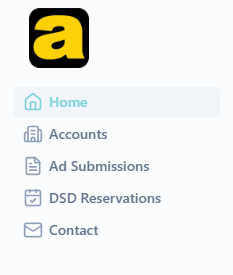
Your sidebar has five items:
- Accounts: the stores and groups tied to you, on two tabs.
- Ad Submissions: ads you've sent, and where you start a new one.
- DSD Reservations: vendor bookings at your stores.
- Contact: messaging your account manager at Adergy.
- Home: a summary of all of it.
You don't approve DSD reservations
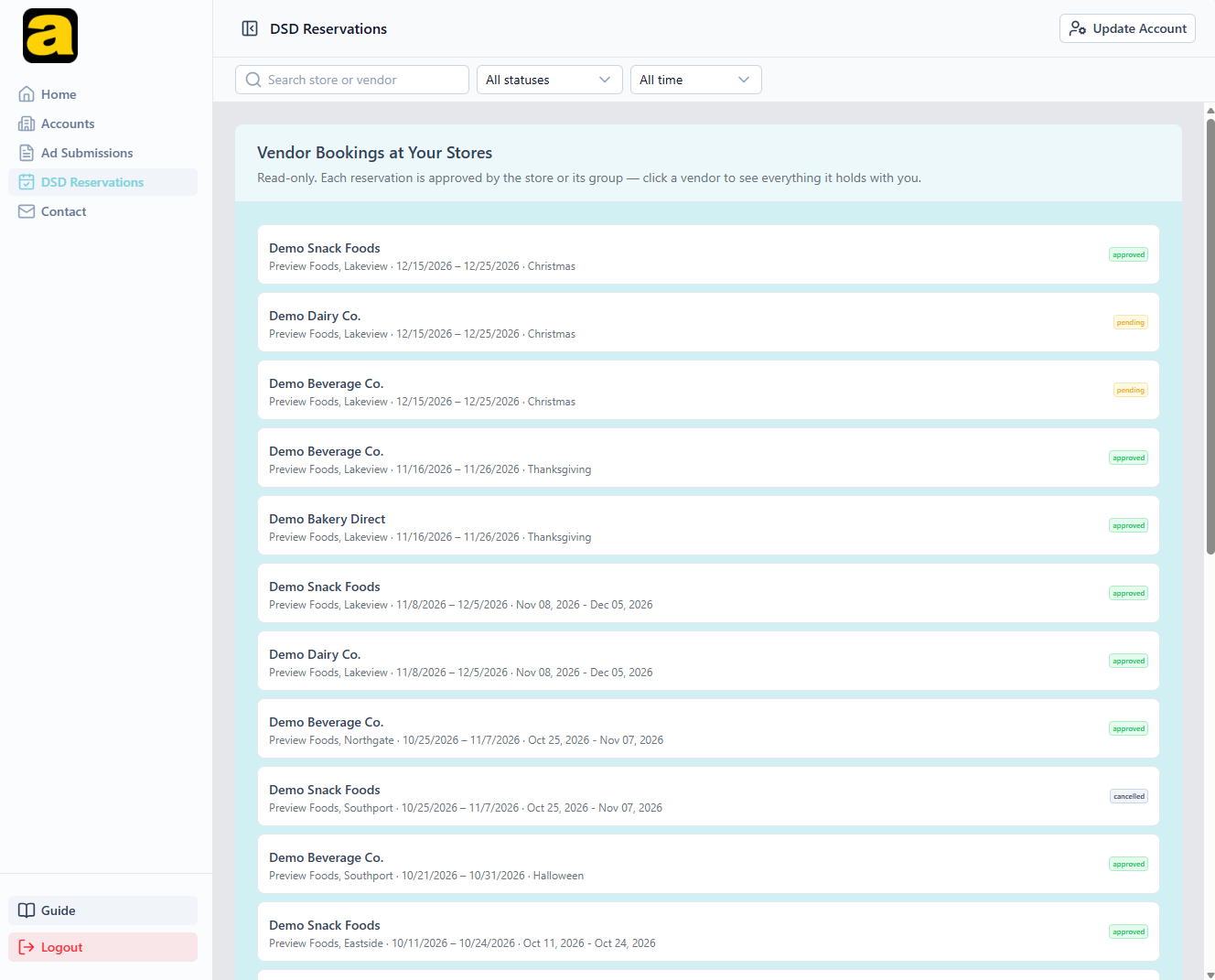
Vendor bookings at your stores are on your DSD Reservations screen in every status, but the decision belongs to each store or its group. You can see them, but you don't act on them.
Whether your account can send ads#
Warehouse accounts come in two kinds, and it's a setting on your account, not something you choose. Both see exactly the same pages and the same data. The only difference is whether you can submit.
Which one am I? (open Ad Submissions and look for a create button)
- Submit Ads buttonYour account can send ads. Ad Submissions has a create button, and your accounts show Submit Ads. How to send →
- No create buttonYour account is read-only. You see everything (rosters, orders, reservations) but don't submit. The dashboard says so in as many words. What you can see →
Your dashboard says which you are in its welcome text: either “Ad Submissions is where you send ads to them”, or “Your account is read-only, so you can follow what is running without submitting”.
The accounts that buy through you#
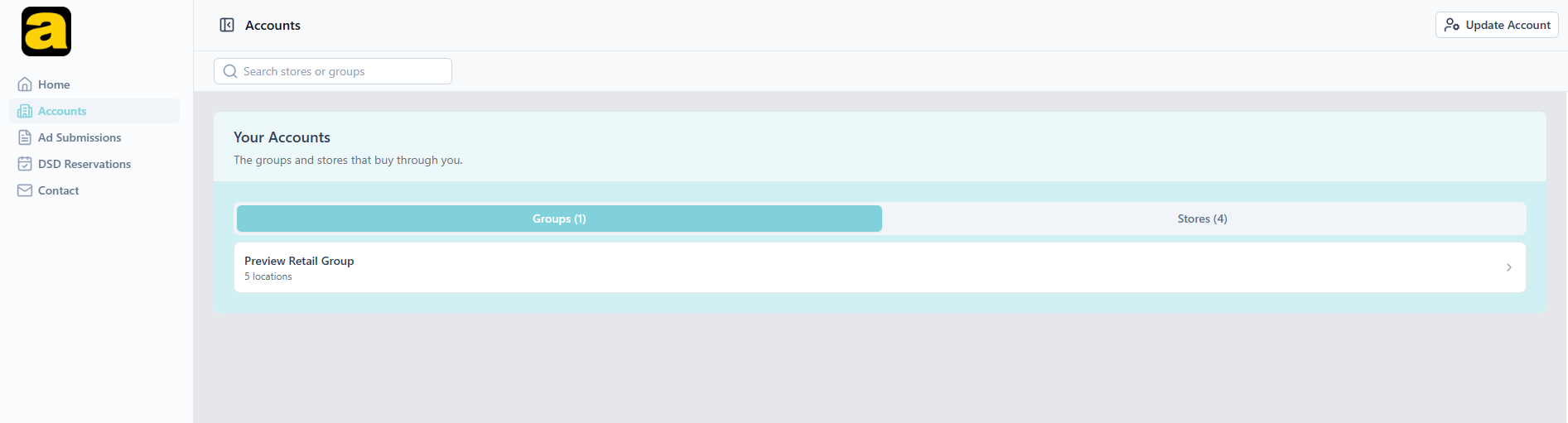
Accounts has a Groups tab and a Stores tab. Opening any row gives you that account's detail page: what it's currently running, its history of ad orders, and the vendor reservations at it.
A store and its group are listed separately
Each account carries its own link to a warehouse, so a store appears on your Stores tab because it buys through you, not because its group does. A store can buy direct from one warehouse while its group buys through another.
That's a legitimate arrangement, so nothing stops it. It does mean a group on your roster may have locations that aren't, and the other way round. If a pairing looks wrong, your account manager can correct it.
From a reservation you can click through to the vendor behind it, to see who they are and everything they hold at your stores.
Sending ads to your accounts#
This is what Ad Submissions does when your account can submit. The order matters: you choose recipients first, then write the ads.
Open Ad Submissions and choose Submit Ads
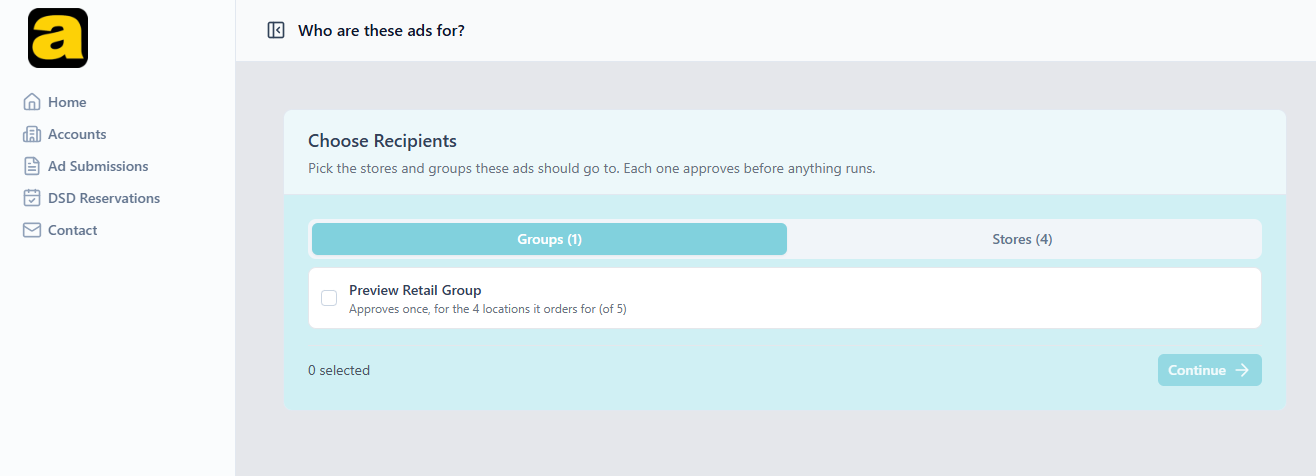
The first screen is headed "Who are these ads for?". Recipients come before the ads themselves.
Pick your recipients under Choose Recipients
Two tabs, Groups and Stores. Each row says who will answer the request, so you know before you send who has to agree.
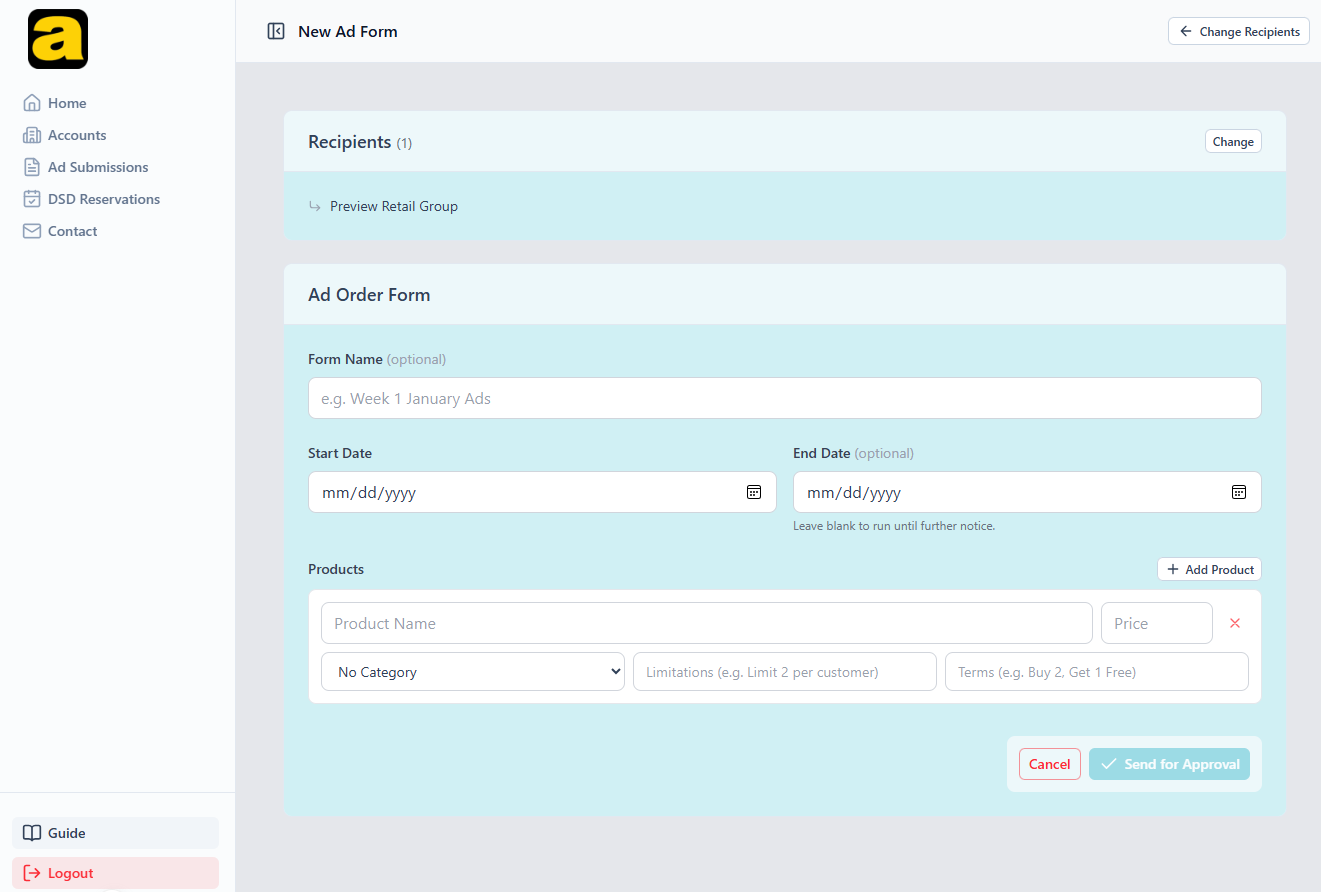
Continue to the ad order form
The same form a group fills in: a name, a run date range, then one row per product with a title and optional price, category, limitations and terms.
Send for Approval
Every recipient gets the request as pending. Nothing runs anywhere until each one approves.
Who answers the request
Every recipient row tells you this outright, because it isn't always the account you picked:
- A store that handles its own ad ordering says “Approves for itself”.
- A store whose ordering belongs to its group names the group, as in “… approves for this location”. The request goes to the group, not the store.
- A group says how many locations it will cover, for example “Approves once, for the 4 locations it orders for”. One decision covers all of them. Where the group has locations that order for themselves, the row adds “(of 5)”. Those extra ones aren't reached through the group and would need sending to directly.
Some rows can't be selected
A group is greyed out, with the reason on the row, when there's nothing it could approve for:
- “Doesn't handle ads for its locations — send to them directly” means the group stays out of ads altogether.
- “None of its locations have handed ad ordering to it — send to them directly” means the group takes part, but every one of its locations orders for itself.
In both cases, send to those stores individually. The same applies to a store with no reachable approver. Instead of letting you send something nobody can answer, the row is disabled and says why.
You can't send to a group and its own stores at once
Ticking a group disables the locations it covers over on the Stores tab, marked “Already covered by … which you selected”. A group's approval already reaches those stores, so selecting both would send the same ads twice.
Starting from an account's page
Submit Ads on any store or group detail page opens the same flow with that account already chosen, dropping you straight at the form.
What happens after you submit#
A submission doesn't run when you send it. Every recipient sees it on their own ad screen under Ads Sent to You, badged “Awaiting your answer”, with your products and prices listed, and they approve or decline it.
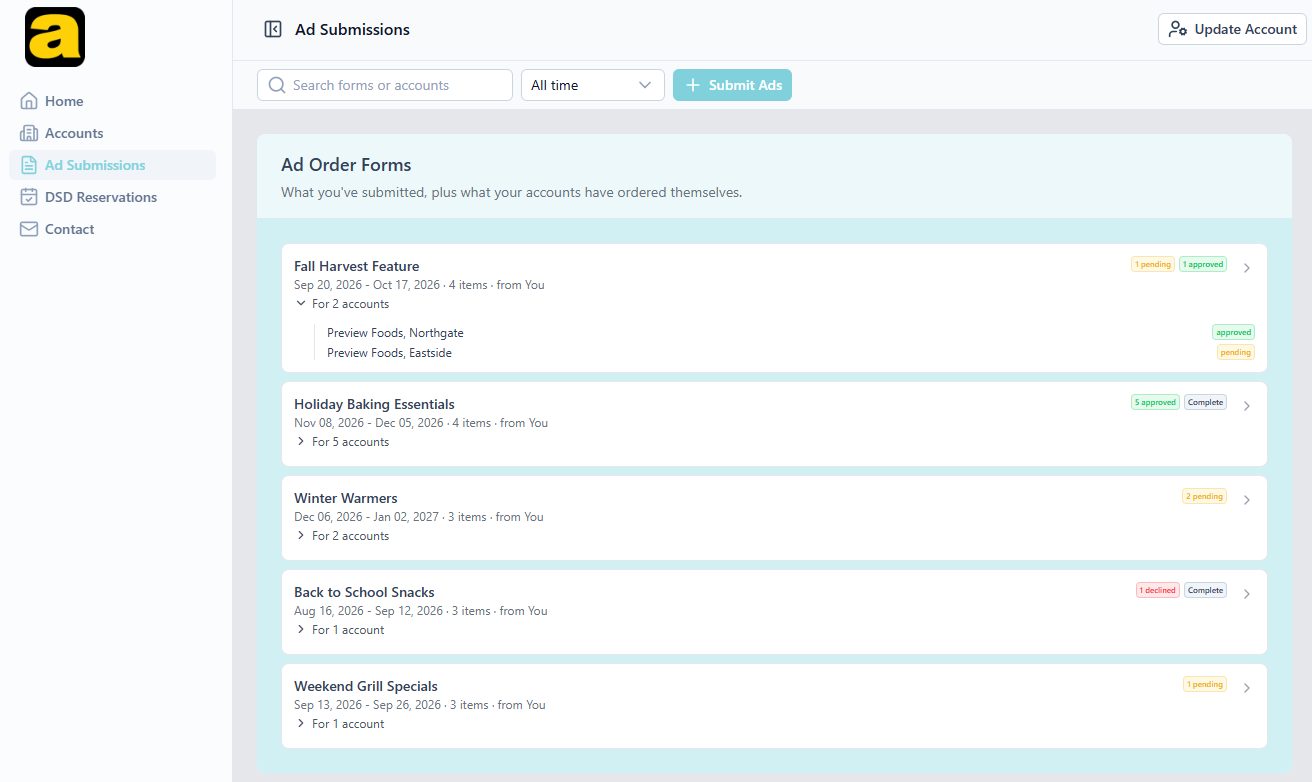
Back on your own Ad Submissions screen, every form carries a rollup of its answers so far, such as “1 pending 1 approved”, “2 pending” or “1 declined”, and gains a Complete mark once every recipient has answered. For N accounts under each one expands to the status against each recipient.
Each recipient answers separately
A form sent to three accounts is three decisions, and they're independent: two can approve while the third declines. That's why a form can read “1 pending 1 approved”. One recipient has said yes and the other hasn't answered yet.
Nothing runs at an account until that account has approved.
Where a recipient declines, they can leave a reason, and it's shown to you against that recipient.
An approved submission becomes a normal ad order
Once approved it behaves like any other order at that account. It appears in what they're running, and it goes to their account manager at Adergy the way their own submissions do.
When a group approves on behalf of its locations, the ads reach every location it orders for. That list is fixed at the moment of approval.
Following what is running#
This part is the same whether or not your account can submit, and it's the whole of a read-only account's job.
- Accounts → any store or group → what it's currently running and its ad order history.
- Ad Submissions → the ad order forms across your accounts, filterable by All time, Current or Past.
- DSD Reservations → Vendor Bookings at Your Stores, filterable by status and period, with the vendor behind each booking one click away.
If your warehouse belongs to a co-op#
A cooperative of warehouses, ROFDA for instance, can hold its own Adergy account, sitting one level above yours. If an administrator has placed your warehouse in a co-op, that co-op sees everything you see: your roster, what each account is running, and their DSD reservations.
A co-op that can submit sends ads through you, not to you. It picks your warehouse, or particular groups and stores under it, and the request lands on those accounts' Ads Sent to You tables exactly as one of yours would. Each store or group answers for itself. You aren't asked to approve it.
You can follow it from your side. A co-op's request appears on your Ad Submissions list from the moment it's sent, marked as from your co-op, with each recipient's answer beside it. It also shows on a store's or group's own page under Awaiting Approval until they respond.
A co-op can send through a read-only warehouse
Whether your own account can submit has no bearing on the co-op's. A read-only warehouse in a submitting co-op will see the co-op's requests reach its accounts, without ever being able to send one itself.
Getting help#
Contact in your sidebar reaches your account manager at Adergy and keeps the conversation in one thread. Use Update Account at the top right to keep your phone number and email current. Approvals and declines are emailed, and an account with no address on file won't hear about them.
Which stores and groups are tied to you, and whether your account can send ads, are both set by your account manager. Ask them if either looks wrong.