Optimize Your Use, Optimize Your Results
Store Accounts
For individual store locations.
Your dashboard#
Your home screen shows three things: who your account manager is and how to reach them, the ads currently playing in your building, and a date range you can change to look at a different period.
The rest of your sidebar depends on how your location is set up, which is what the next section is about.
Which ad setup you have#
Stores order ads in one of two ways. Which one applies to you is a setting on your account, not something you choose. You can tell which you have by looking at your own sidebar.
Which one am I? (look at your sidebar)
- Ad SubmissionsYou order your own ads. Either you type them in yourself, or you pick from a list your group publishes for you. How to submit →
- AdvertisingYour group orders ads on your behalf. This screen shows you what is running, and is read-only. What you can see →
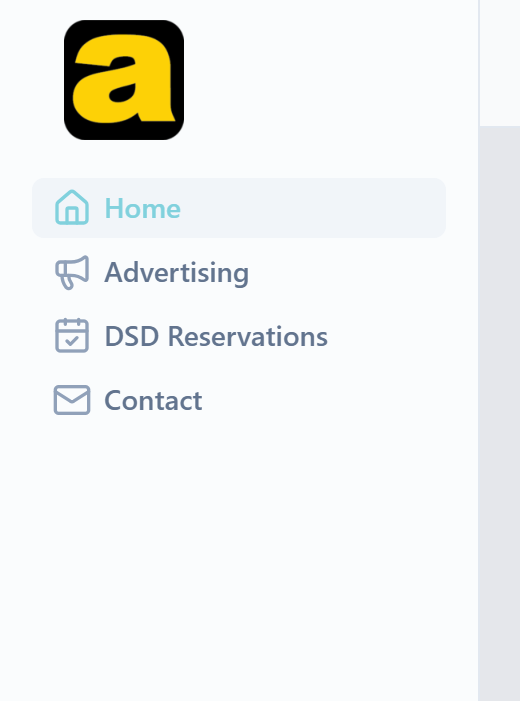
If neither appears, your account isn't set up for ads at all. Contact your account manager.
Ordering your own ads#
This is what you see under Ad Submissions.
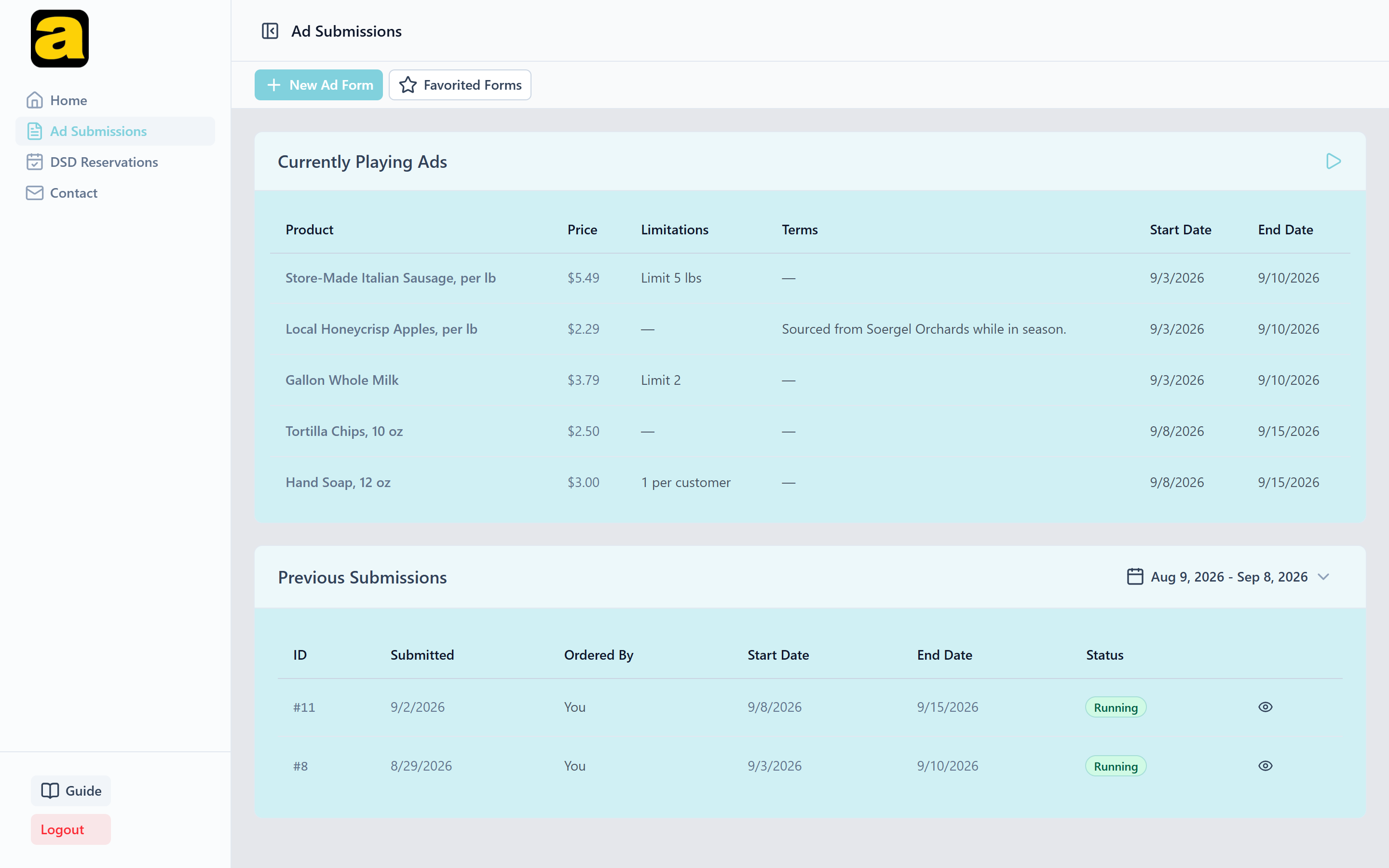
Open Ad Submissions and choose New Ad Form
Favorited Forms sits beside it. More on that below.
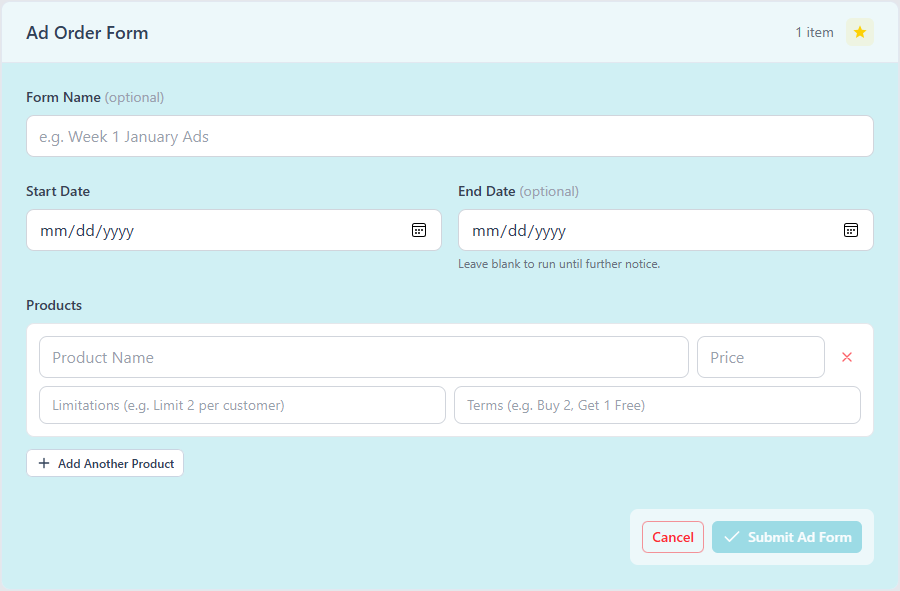
Set the dates the ads should run
If you're picking from a list your group published, the dates are limited to the period that list covers, and they're filled in for you.
Add your products
Each one takes a title, and optionally a price, a limitation such as "Limit 2 per customer", and terms such as "Buy 2, Get 1 Free".
Submit
The form goes to your account manager at Adergy. It shows up under Previous Submissions straight away.
A price is optional
A product can carry terms instead. “Buy 2, Get 1 Free” is a complete offer on its own. Where there's no price, displays show a dash instead of a zero.
If your group publishes a list for you
Some locations pick from a list their group publishes instead of typing their own products. If that's you, the create form has an Available Ads panel down the side instead of blank rows. Products are grouped by category, with a search box and an Add All button per category, and the ones you pick collect under Selected Products.
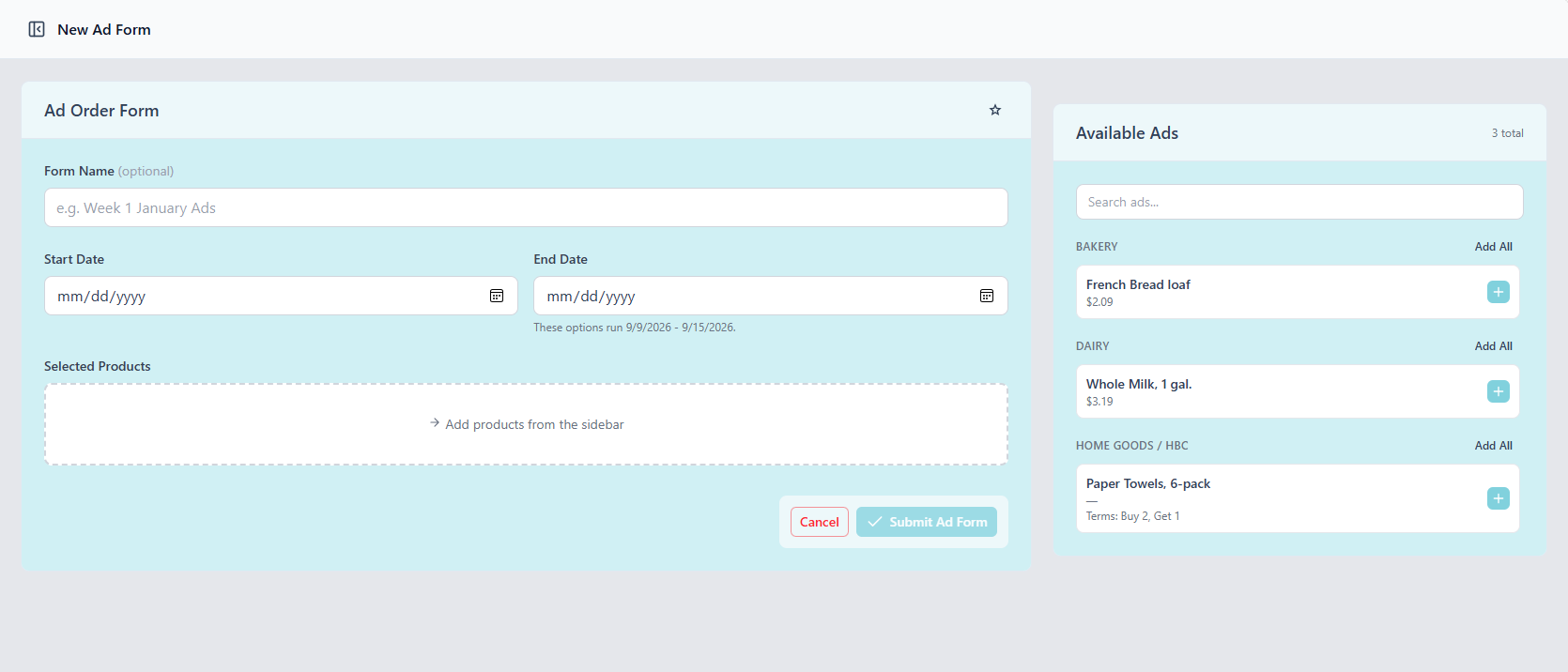
An empty list usually means the window is closed
A published list can be picked from starting 7 days before its run begins, and stops 3 days before the run ends. Outside those dates there's nothing to select and the page looks empty.
Your group can move that window by changing the run dates on their end.
Some locations can do both, picking from the published list and typing in their own products on the same form. If your form offers both, keep in mind that one form has one date range. A product you want to run for longer needs a form of its own.
Favorited Forms and reusing a submission
Starring a submission puts it in Favorited Forms. That's both a shortlist of the ones worth keeping and the fastest way to build a similar order later. Reuse on a favorited or past form opens a new form already filled in from it.
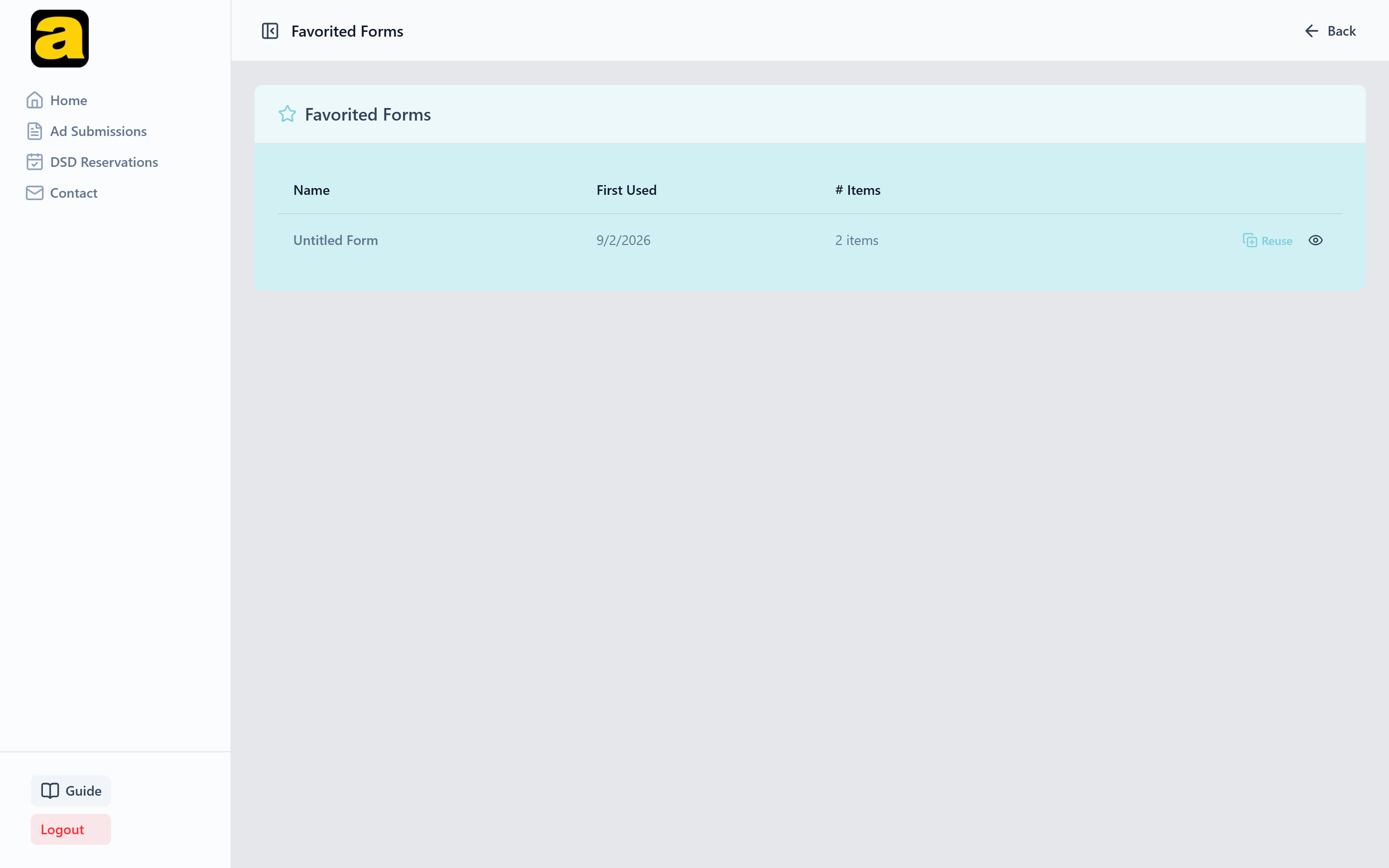
Reuse copies the products, not the dates
Titles, prices, limitations and terms come across. Dates don't. You set those fresh each time. The form shows which submission it started from.
Reuse only appears on accounts that type in their own products. On a pick-from-the-list account the button isn't shown.
When your group orders for you#
If your sidebar says Advertising instead of Ad Submissions, your group places ad orders on your location's behalf. This is the most common arrangement.
That screen has two tabs, Currently Running and Future, over a history of what has been ordered for your location.
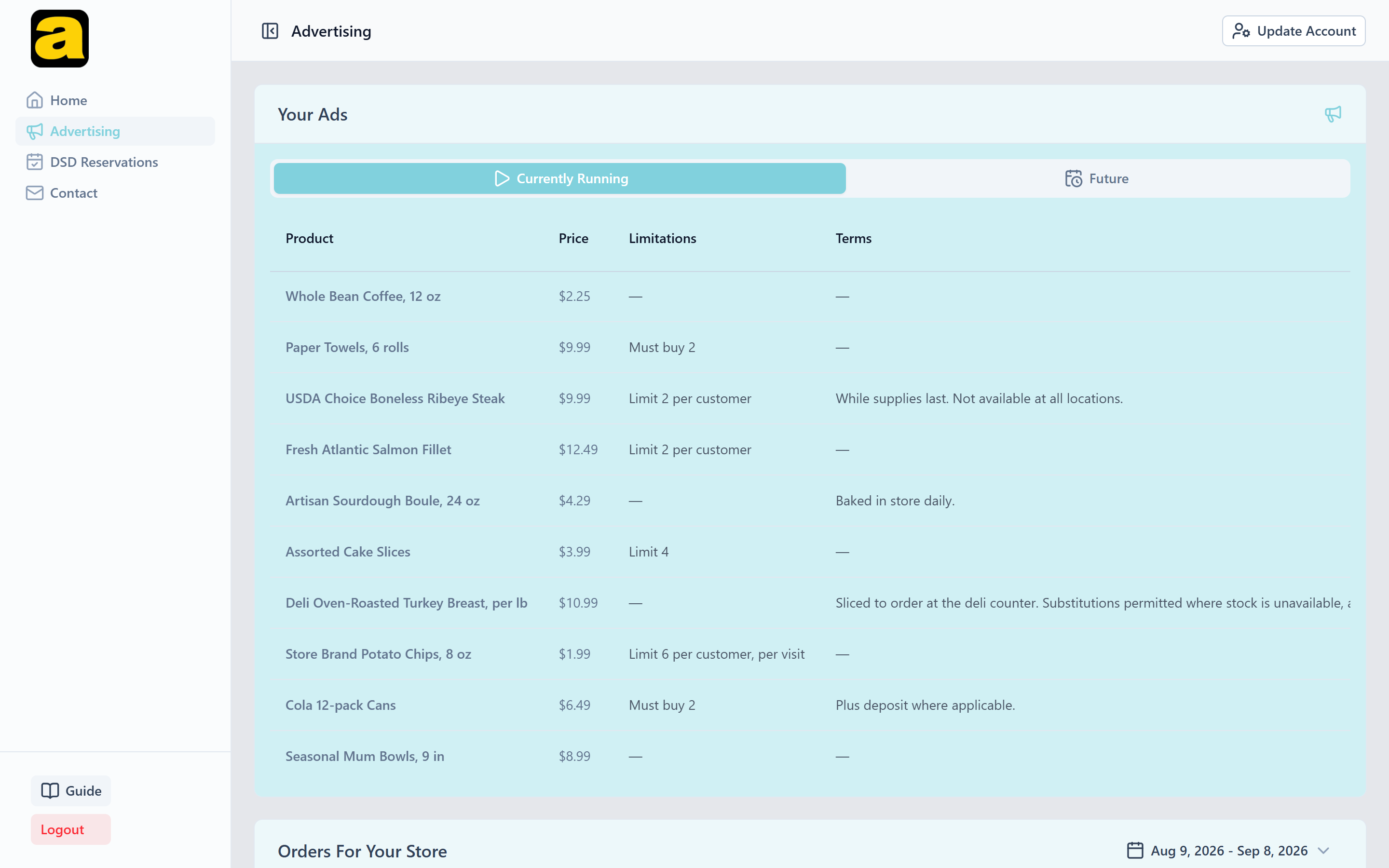
This screen is read-only
There's no submit button here, because the ordering belongs to your group. To change what's running, or to correct something, ask your group or your account manager.
Ads sent to you by a warehouse or co-op#
If your store buys through a warehouse that has an Adergy account, that warehouse can send you an ad order form (a set of products with prices, terms and limitations, for a run period) and ask you to run it. A co-op the warehouse belongs to can do the same, sending through the warehouse. In that case the request names the co-op, and otherwise it works exactly the same way. Nothing sent to you runs at your store until you approve it.
Requests arrive on Ad Submissions, in a card headed Ads Sent to You. When anything is waiting, the Ad Submissions item in your sidebar shows a count, and the card repeats it as “2 to review”. Each request lists the products it contains, marked “Awaiting your answer”.
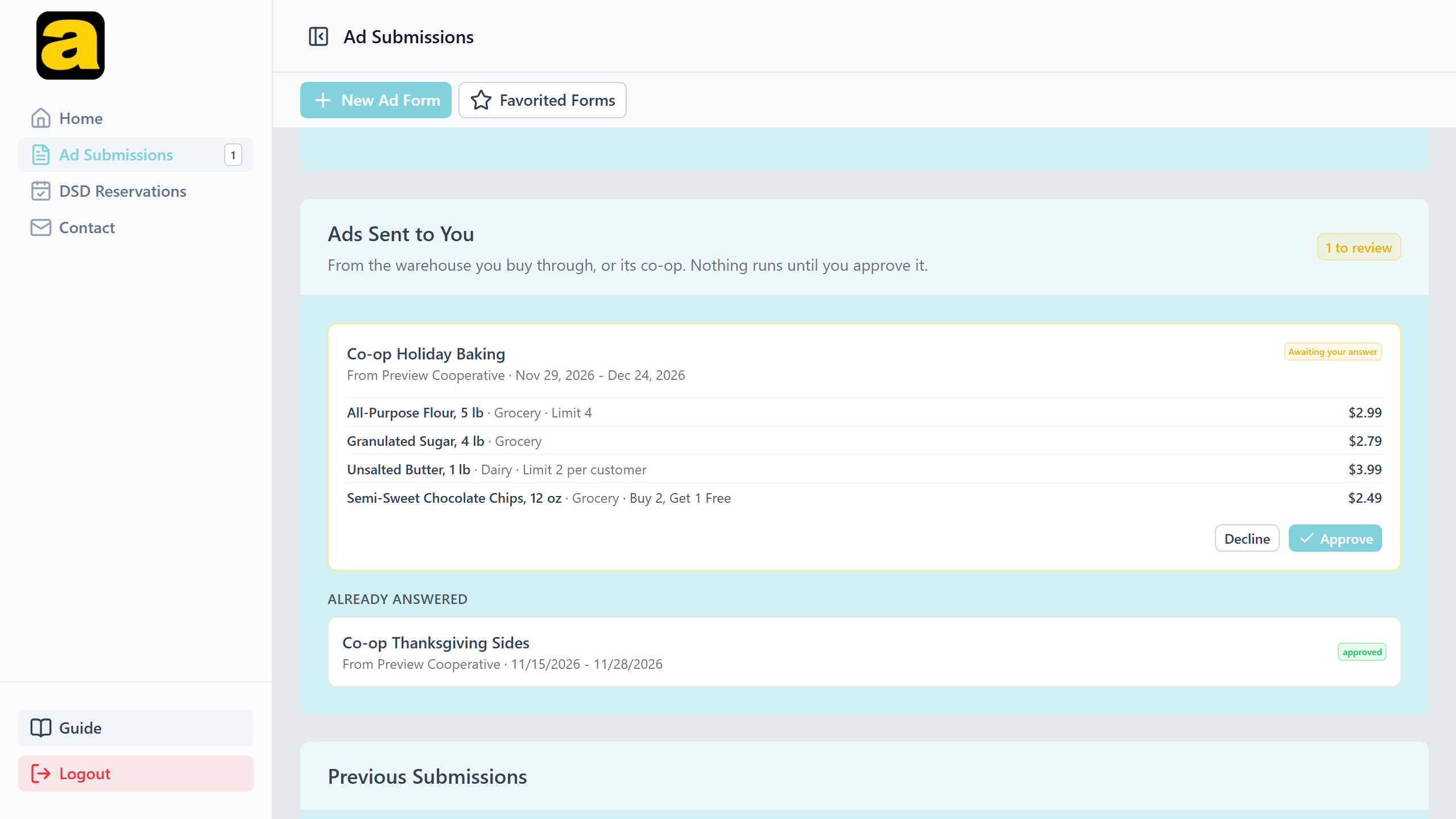
Approve turns it into a normal ad order at your store. It shows up in what you're running, and it goes to your account manager at Adergy the same way your own submissions do.
Decline asks for a reason. It's optional, and it's shown to the sender so they know why.
Requests you've already answered drop into an Already answered list under the pending ones, with the decision against each and the reason you gave, if any.
If your group handles your ordering, the request goes to them
When your ad ordering belongs to your group (your sidebar says Advertising, or you pick from a list your group publishes), a request aimed at your store goes to your group to answer. The card isn't on your screen at all.
Once your group approves it, the ads reach you the way any group order does. There's nothing for you to do.
DSD vendors at your store#
Outside vendors can reserve advertising space at your location. The DSD Reservations screen is where you control who can do that and approve what they ask for.
Unless your group handles it for you
Some groups manage DSD for their stores. If yours does, you still have your invite code and your list of participating vendors. What you don't get is the approve and decline controls, because those requests go to your group.
The invite code card names who reviews them, so you can see at a glance whether a request is yours to answer.
Your invite code
Your DSD screen shows a code that looks like K7QM-3XRW. Give it to any vendor who should be able to request space at your store. Dashes and capitals don't matter when they type it in.
A vendor entering your code doesn't get access to your store. It opens a request for you to approve or decline.
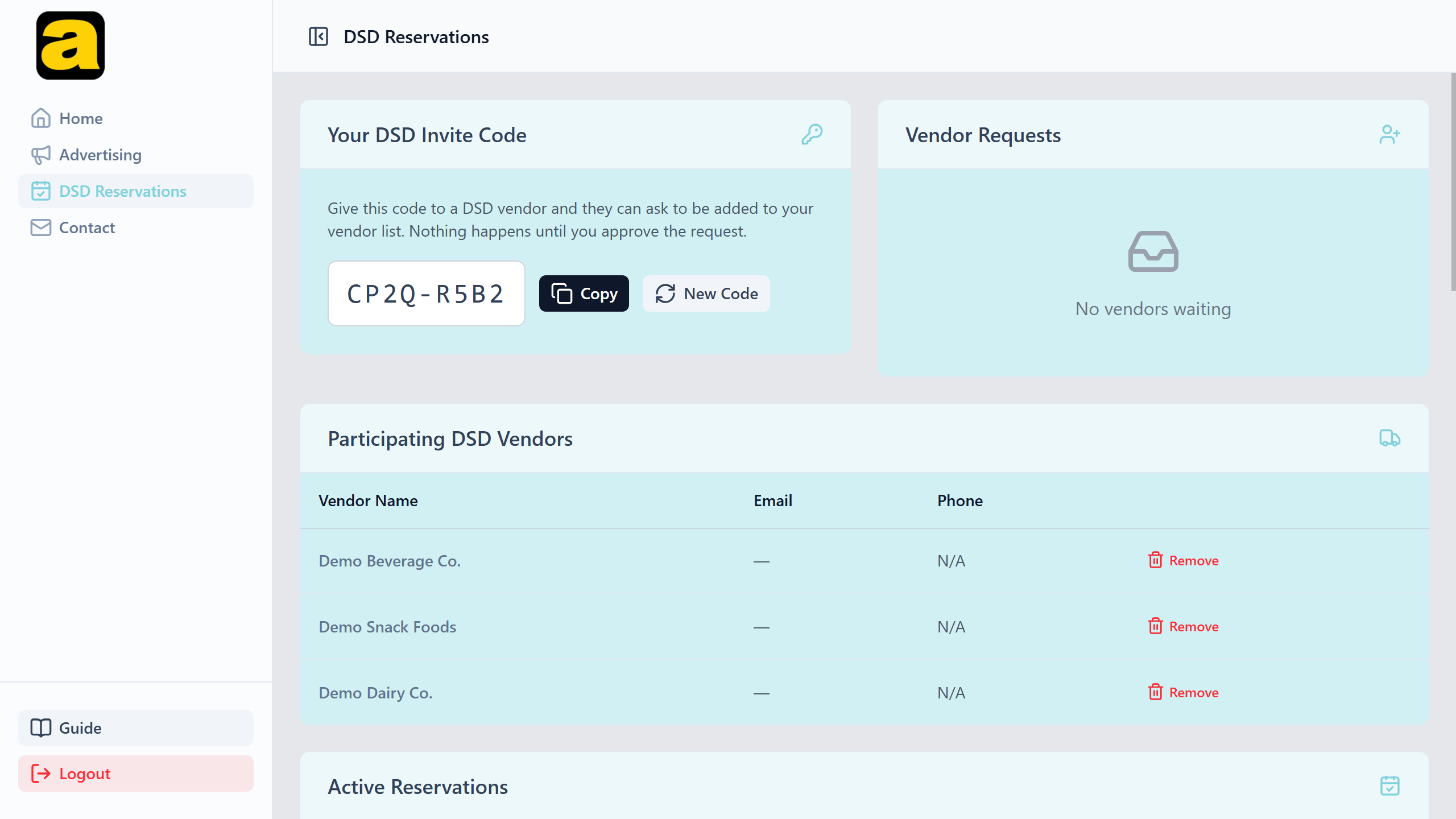
What rotating the code does
It changes the code and nothing else. Requests already waiting stay waiting, approved vendors stay approved, and declined vendors stay declined. All it stops is anyone new using the old code.
Declining a vendor
A decline stands until you lift it
A declined vendor can't use your code again, and rotating the code doesn't change that.
To let them back in, open Declined Vendors at the top right of the DSD screen and choose Allow to request again. The block lifts and the record of the decline stays.
Removing a vendor
Removing a vendor stops them booking anything new at your store. Reservations they already hold are left in place. Cancelling booked advertising as a side effect of a removal would catch both sides off guard.
A vendor can't cancel a reservation you've already approved, so if you want those weeks released as well, ask your account manager to cancel them.
Approving reservations
Your store can hold 3 reservations in any one week. Weeks run Sunday through Saturday, and a reservation starting mid-week takes up that whole week.
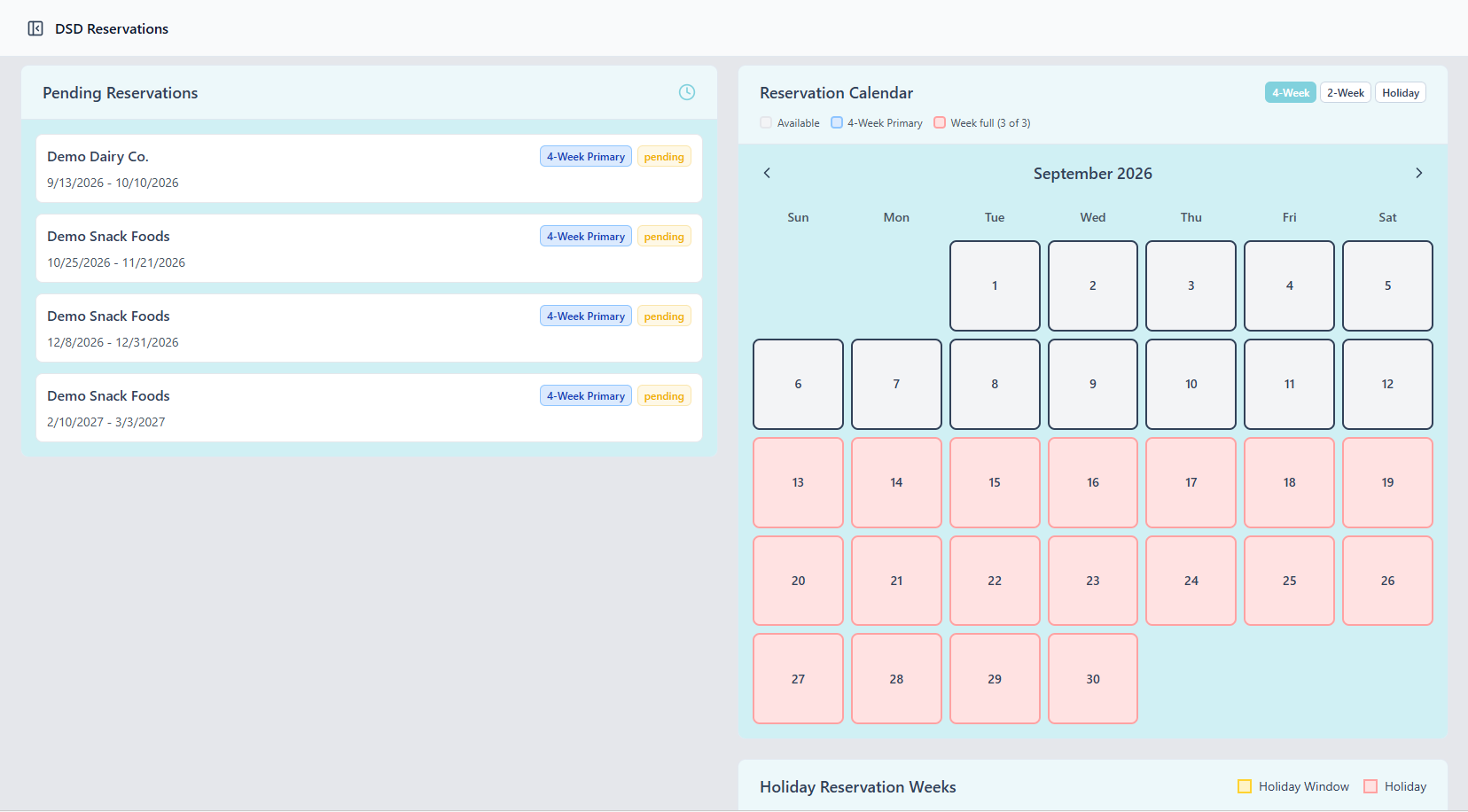
Why an approval can be refused
Requests waiting on your decision don't hold a slot, so you can receive more requests for a week than you have room for.
As you work down the queue, a later approval can be refused once the week fills up. The message names the weeks that are full. Those weeks are booked, and the remaining requests need declining or moving to another week.
Holiday reservations are counted separately, with an allowance of 2 per holiday season. They don't use any of the 3 weekly slots, so a week can carry 3 ordinary reservations and 2 holiday ones at the same time.
The calendar on this screen shows approved reservations only. Anything still awaiting your decision is in the list beside it, not on the calendar.
Getting help#
Contact in your sidebar messages your account manager and keeps the thread. Use Update Account at the top right to keep your phone number and email current. Vendor requests and submission notices are emailed, and an account with no address on file won't hear about them.
Anything on this page described as a setting, like which ad setup you have or whether your group handles DSD, is something your account manager can change.