Optimize Your Use, Optimize Your Results
Group Accounts
For retail groups and banners managing multiple store locations.
What a group account gives you#
Your home screen lists the stores in your group and the ad order forms they've recently submitted. You have this visibility in every arrangement, including the ones where your stores do their own ordering and you have no hand in it.
What varies is how much of the ordering is yours, which the next section covers, and whether DSD approvals come to you.
Which ad arrangement your group is in#
There are three. It's set on your group's account, not chosen per submission, and your sidebar tells you which one you have.
Which one am I? (look at your sidebar)
- Ad SubmissionsYou place ad orders on your stores’ behalf. They cannot submit for themselves. How to order →
- Ad OptionsYou publish lists of products for your stores to choose from. They submit their own forms from your list. How to publish →
- Neither of thoseYour stores order for themselves. You keep read-only visibility into what they have submitted. What you can see →
Ordering ads for your stores#
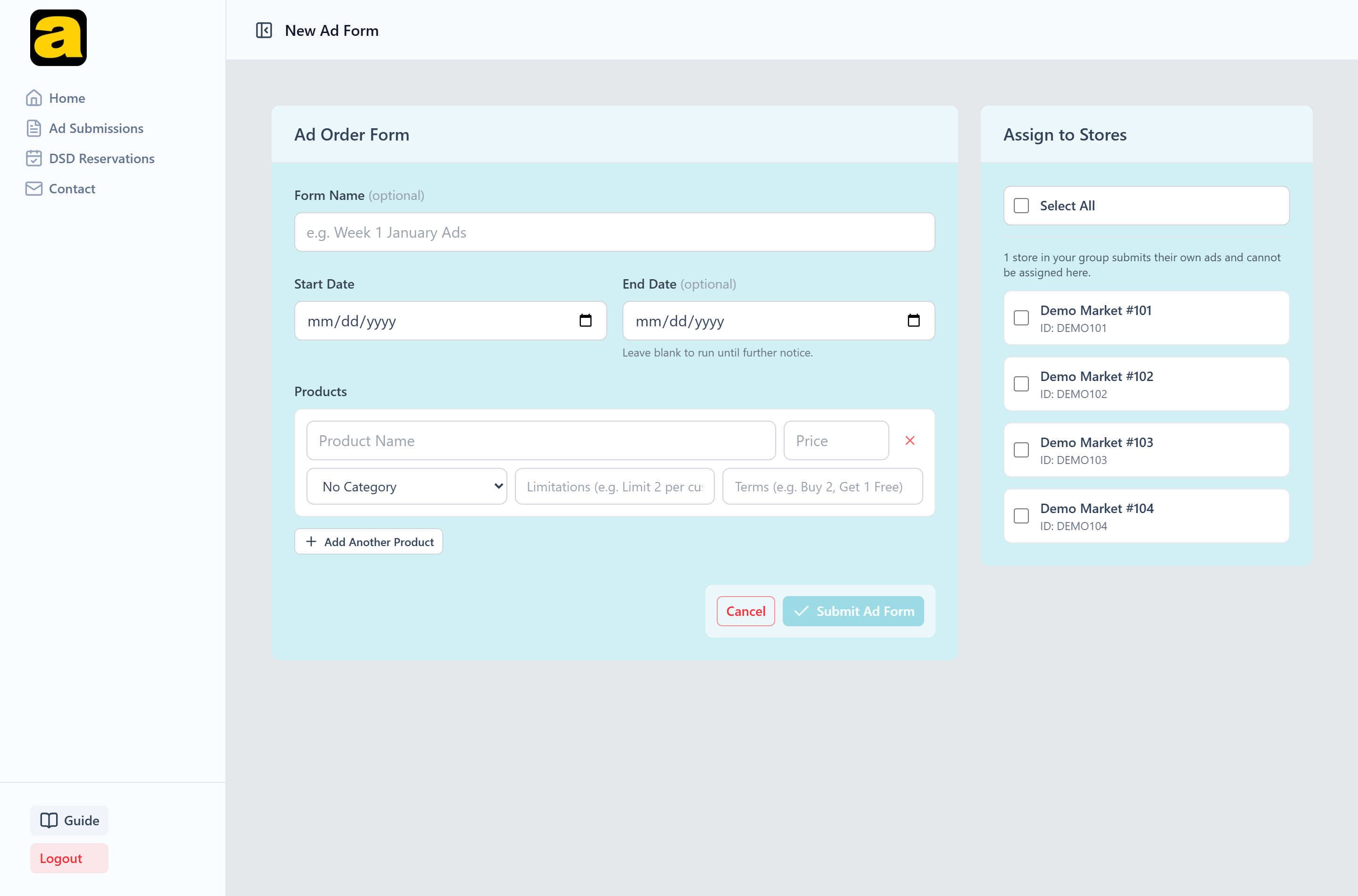
Under Ad Submissions, creating a form works much like a store's own: a run date range, then your products (title, optional price, optional category, limitations and terms), plus a checklist down the side for the locations the submission is for.
Because these forms carry a category (Meat, Produce, Deli and so on), your account manager sees them broken down by category instead of as one flat list.
Why a store might not be on your checklist
Whether a group orders for a location is set per location, not once for the whole group, so you can order for some of your stores and not others. Locations that order for themselves are left off the checklist, with a note saying how many were excluded.
If a location should be yours to order for, your account manager can change it.
Reuse on a past or favorited form opens a new one filled in from it. The products and the store selection both come across, but the dates don't; you set those fresh. If a store you had targeted has since taken its own ordering back, it's dropped from the selection and the form tells you which.
Publishing options for your stores#
Under Ad Options, you publish a list of products and your stores build their own submissions by choosing from it.
Open Ad Options and choose Publish a list
Each product takes a title, and optionally a price, a category, a limitation, and terms.
Set the run period the list is for
This is the period the ads will run. It also sets the window in which stores can pick from the list. See below.
Tick the stores it applies to
A list doesn't have to go to every store. Any store in your group can receive one, including stores that order for themselves.
Publish
The products become selectable to those stores when the window opens. Publishing again later adds to what they can pick from instead of replacing it.
When your stores can actually pick
Your stores can't pick from a list whenever they like. The window opens a week before the run starts, so they can order ahead, and closes three days before it ends, so there's still time to produce the ads. You don't set those dates separately; they follow the run period you gave the list.
A list running March 1–28
- Stores can start picking
- February 22, a week before the run begins
- Picking closes
- March 25, three days before it ends
A list with no end date never stops being selectable.
To extend or cut short a window, edit the run period
Use Edit dates on the list. The window moves with it. You don't republish the list, and picks your stores have already made are kept.
Publishing stacks, and removing isn't deleting
Publishing again widens what a store can pick from instead of replacing the earlier list. Removing a product takes it off the current list, but what stores were offered before stays on record.
A store picking from several of your lists at once is limited to the overlap of their run periods, and picks from lists whose periods don't overlap are refused. One submission has one date range, so it can't straddle two unrelated runs.
Ads sent to you by a warehouse or co-op#
A warehouse your locations buy through can send you an ad order form and ask you to run it. So can a co-op that warehouse belongs to, sending through it. Nothing sent to you runs anywhere until you approve it. Requests reach you in two shapes:
- Sent to the group. One decision, and on approval the ads reach every location you order for.
- Sent to one of your locations. When a location's ad ordering belongs to you, a request aimed at that location comes to you to answer on its behalf.
Both arrive under Ad Approvals, which has its own item in your sidebar and shows a count whenever something is waiting. The requests sit in a card headed Ads Sent to You. Each one says which location it's for, lists its products, and carries “Awaiting your answer” until you act.
Ad Approvals is there for every group that takes part in ads, whether you order for your stores or publish options for them. A group that stays out of ads entirely has no approvals to give, so it has no item for it.
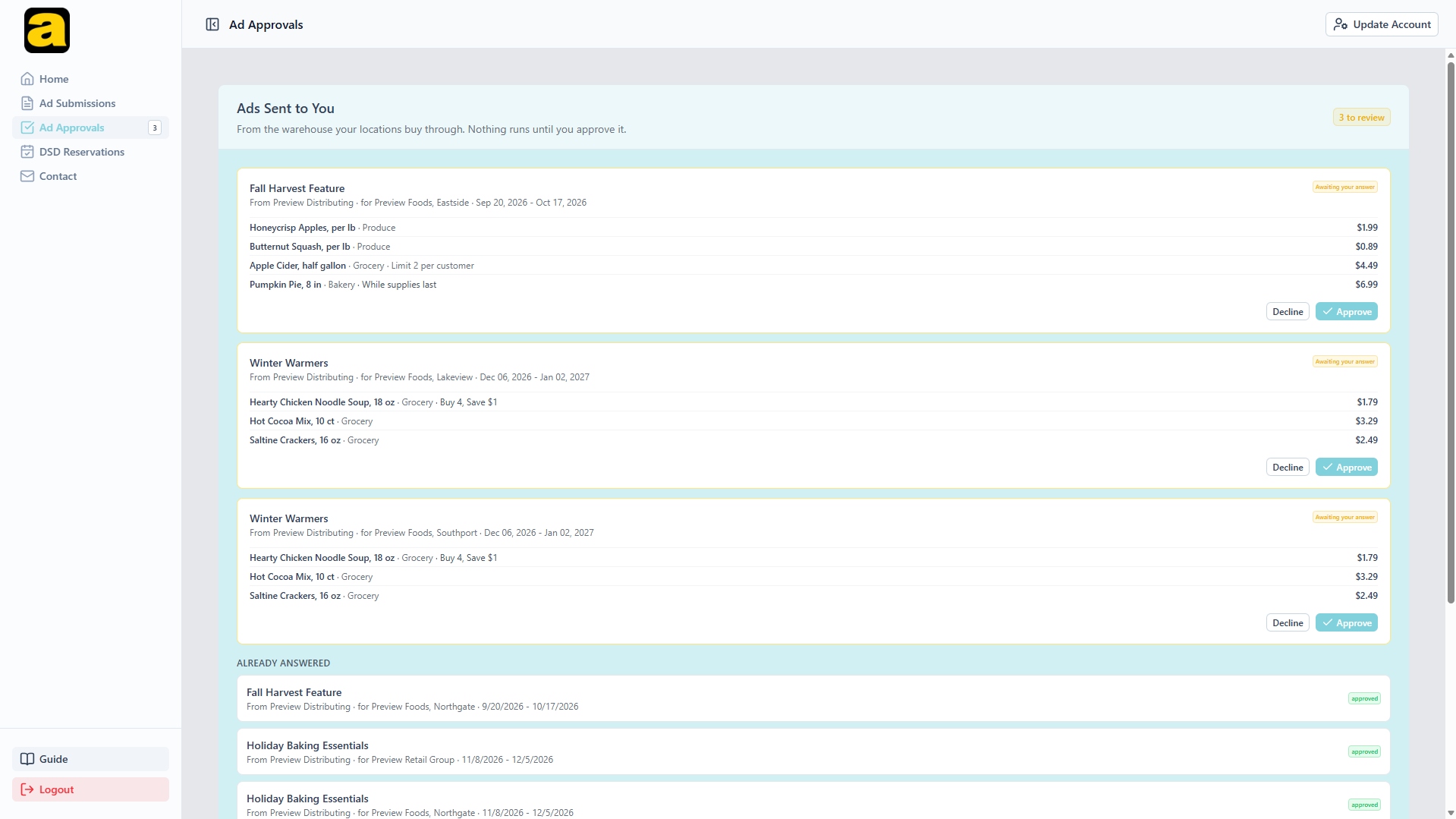
Approve makes it a real order. For a request sent to the group, that means every location you order for (the list is fixed at the moment you approve), and the order goes on to your account manager at Adergy the way your own submissions do.
Decline asks for a reason. It's optional, and it's shown to the sender.
Answered requests move to an Already answered list under the pending ones, with the decision and any reason you gave.
Why a location's request comes to you
A warehouse can only send to a location whose approval has somewhere to land. If the location's ad ordering belongs to you, you're that somewhere. The store doesn't see the request and can't answer it. If the location orders for itself, the request goes straight to the store and you're not involved.
DSD reservations#
Outside vendors reserve advertising space at your stores. Whether you handle that or each store does is a setting on your group.
Which one am I? (open DSD Reservations and look for approve and decline buttons)
- You can approve/declineVendor requests and reservations for all your stores come to you.
- Read-onlyEach store handles its own vendors. You can still see what is booked across the group.
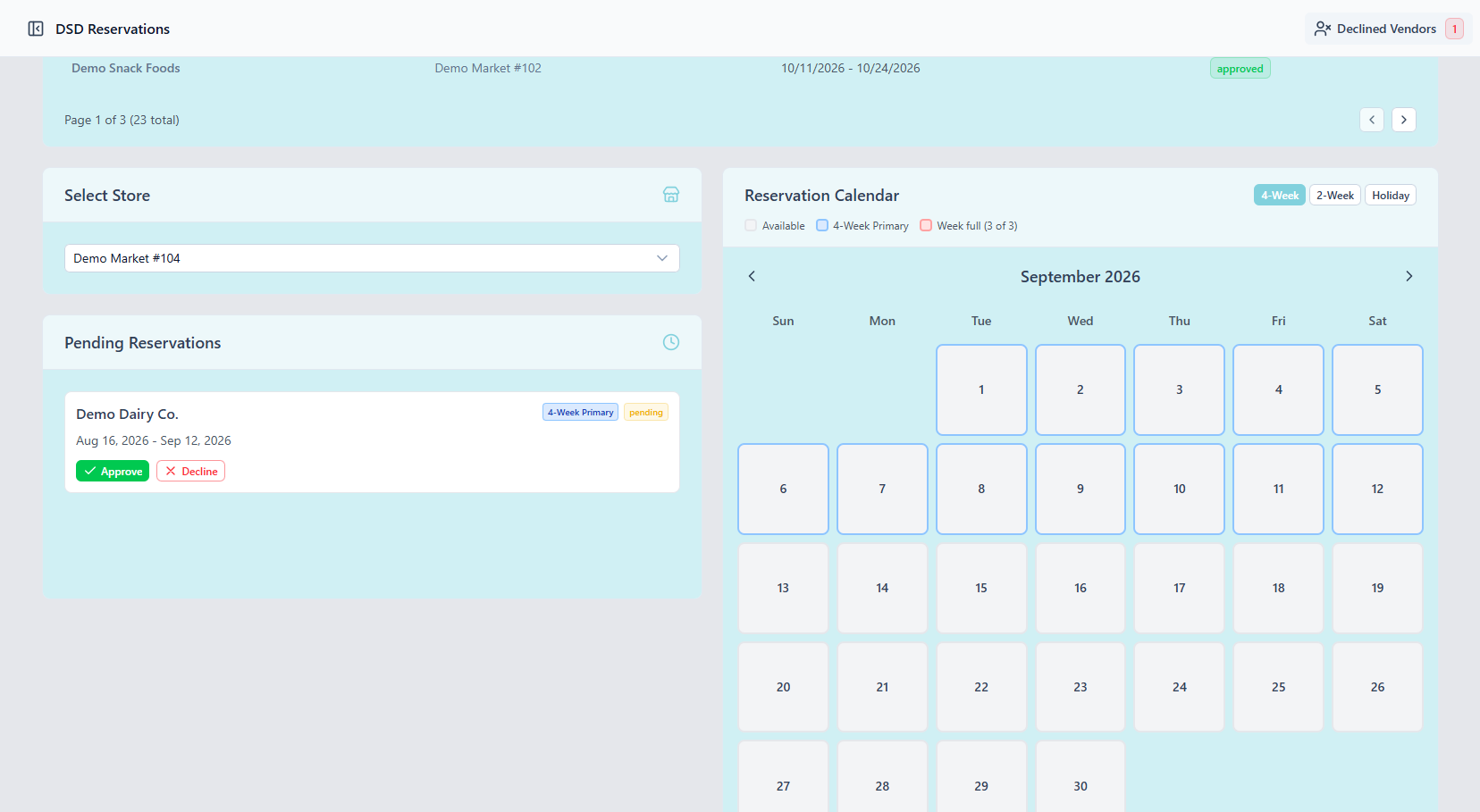
When DSD is yours to manage, you get the same controls a store would have, across every location in the group:
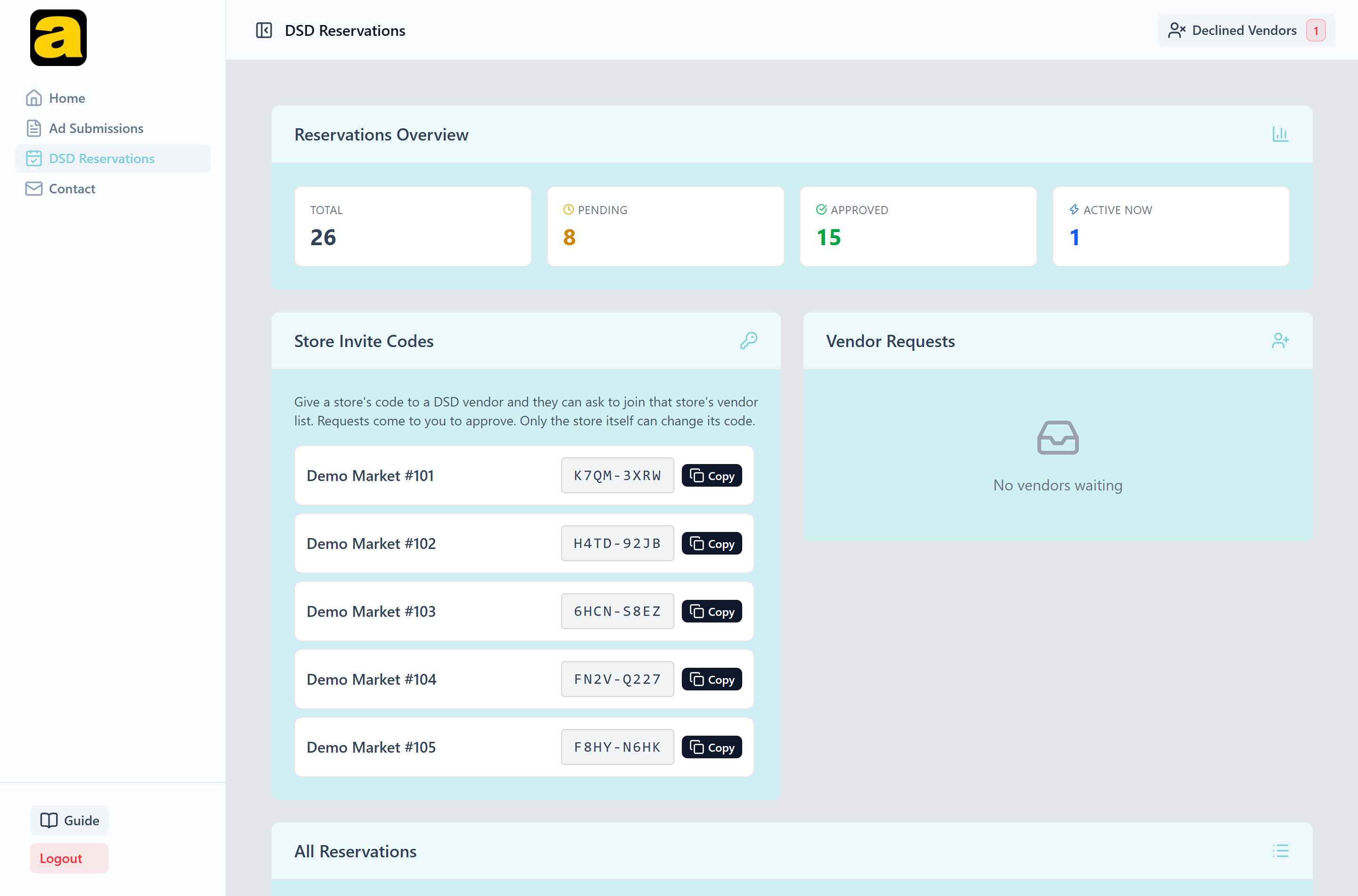
- Vendor requests: approving, declining, and the Declined Vendors list where a decline can be lifted. A decline blocks that vendor from that store until you lift it, and rotating an invite code doesn't clear it.
- Your stores' invite codes, listed read-only so you can hand them to vendors. Only the store itself can rotate its own code. You can see it, but not change it.
- Reservation approvals, subject to the same limits a store has: 3 per store per week, Sunday to Saturday, plus a separate allowance of 2 per store per holiday season.
Why an approval can be refused
Requests awaiting a decision hold no capacity, so a store can collect more requests for a week than it has room for. If you approve them one by one, a later one can be refused once the week fills up. The message names the weeks that are full. Those weeks are booked, and the rest need declining or moving to another week.
The group calendar shows approved reservations only. Anything still pending sits in the list beside it.
Getting help#
Contact in your sidebar reaches your account manager and keeps the conversation in one thread. Use Update Account at the top right to keep your phone number and email current. Submissions and vendor requests are notified by email, and an account with no address on file won't hear about them.
Every arrangement described here (your ad mode, whether a particular location's ordering belongs to you, and whether you handle DSD) is something your account manager can change.