Optimize Your Use, Optimize Your Results
DSD Vendor Accounts
For outside vendors reserving advertising space at stores.
What your account does#
A DSD vendor account lets you reserve advertising space at the stores you cover. Your sidebar has three items:
- Home: the stores you're approved at, and where you add new ones.
- Reservations: booking space, and tracking what you've booked.
- Contact: messaging your account manager at Adergy.
Everything on this page happens on one of the first two screens.
Getting onto a store's list#
You can only book space at stores that have approved you. Stores aren't assigned to you automatically. Each one adds you by handing out a code that you redeem.
Ask the store for its invite code
Every store has one, shown on their own DSD screen. It looks like K7QM-3XRW. Dashes and capital letters don't matter when you type it in, only the eight characters do.
Enter it under "Add a Store" on your dashboard
The field is labelled Invite code. If the code isn't recognised you get the same message whatever the reason, so check it with the store.
Wait for the store to approve you
The code doesn't add you to anything by itself. It opens a request, and the store (or the group that handles DSD for them) approves or declines it.
Once approved, the store appears under "Your Stores"
From then on you can book ad space there. Until then, you can't.
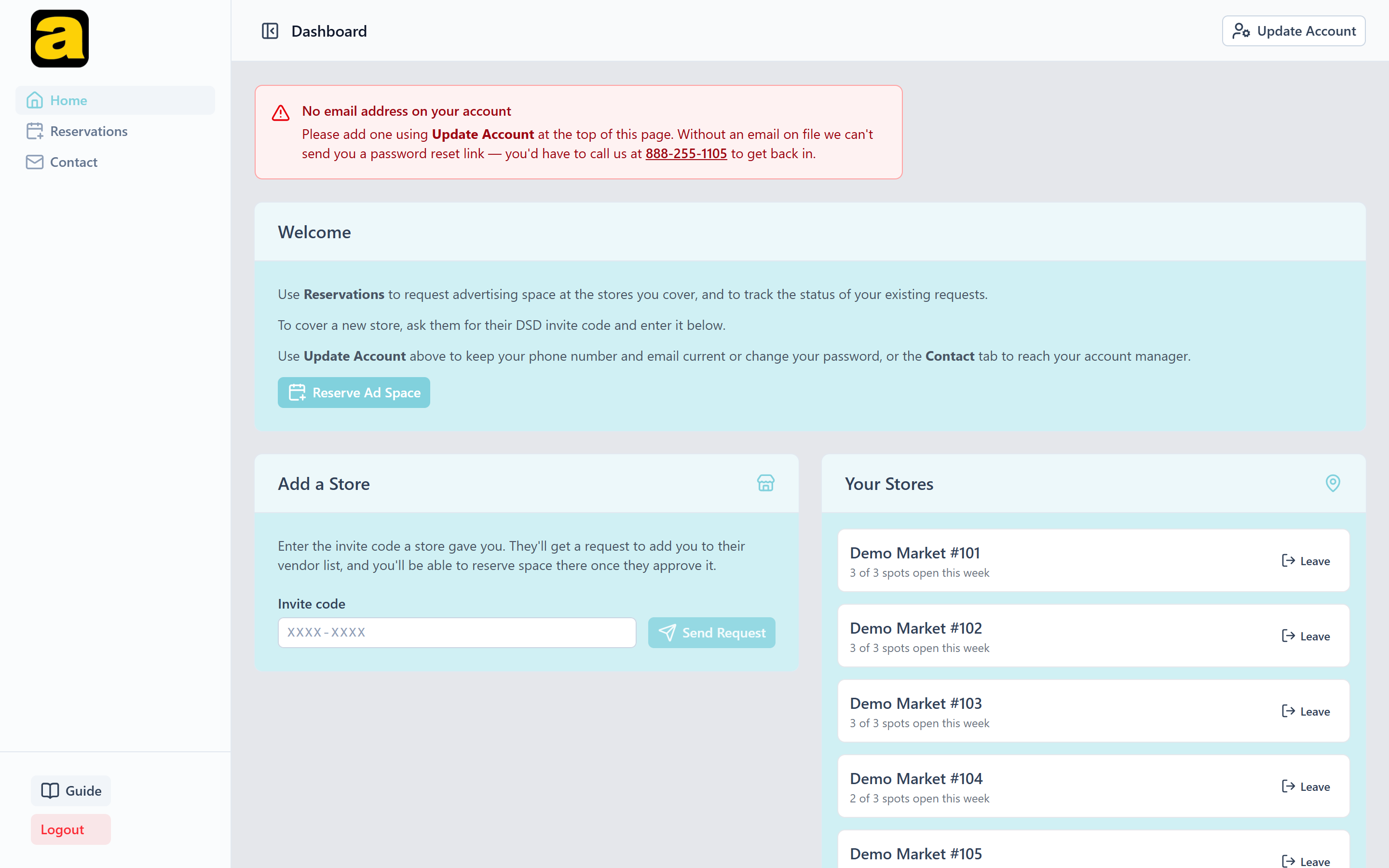
What entering a code does
It creates a request. The request sits with the store, or with the group that handles DSD for them, until they approve or decline it. Only an approval puts you on their list.
A code that isn't recognised gives the same message whatever the reason. A mistyped code, a code that has been rotated, and a store that isn't taking vendors right now all look the same from your side.
If you're declined
A decline stands until the store lifts it. You can't redeem that store's code again, and asking them for a fresh code won't help, because rotating the code has no effect on a decline.
The store lifts it from their own Declined Vendors list. If you think a decline was a mistake, contact the store directly or your account manager. Retrying the form won't get you anywhere.
A request you've sent that hasn't been decided yet can be withdrawn from your dashboard and sent again later.
The three promotion types#
A promotion type decides three things: how long your run can be, how long you have to wait before booking that same store again, and which allowance it counts against.
| Type | Run length | Wait before rebooking that store | Counts against |
|---|---|---|---|
| 2-Week Exclusive | 1–14 days | 1 clear week | 3 per store, per week shared by both |
| 4-Week Primary | 15–28 days | 2 clear weeks | |
| Holiday | Up to 11 days, always ending on the holiday | None | 2 per store, per holiday season |
Two things worth knowing before you plan a campaign.
The two standard lengths don't overlap. A run of 15 days or more is a Primary. 14 days or fewer is an Exclusive. You don't choose between them for a given length; the length decides the type.
Both standard types read the same calendar. A week's availability at a store doesn't depend on which promotion you're buying, so switching the Promotion Type won't reveal different open weeks. It only changes how long you can run and how long you wait afterwards.
Holiday promotions work differently
A holiday promotion always ends on the holiday itself. You only choose how early it starts, up to 10 days before. So you're picking a season instead of a starting week, and that's why the grid shows seasons for this type.
Holiday space is separate inventory. It has its own allowance of 2 per store per season, it doesn't use up any of the 3-per-week standard slots, and no cooldown applies to it in either direction. You can hold a standard promotion and a holiday promotion at the same store over the same dates.
Booking a period#
Open Reservations and choose a store
Only stores that have approved you are listed.
Pick a Promotion Type
The three types are described below. The type sets how long your run can be and how long you wait before booking that store again.
Pick a starting week
The grid shows the promotional year a month at a time, and each week shows how many slots are open. Holiday promotions show seasons instead of weeks.
Set your dates and confirm
The confirmation box lets you set the exact start and end dates within the rules for that type, and give the reservation a name. "Spring Soda Push" is easier to recognise later than a date range.
Wait for the store to approve it
A new reservation starts as pending. It isn't a booking until the store approves it.
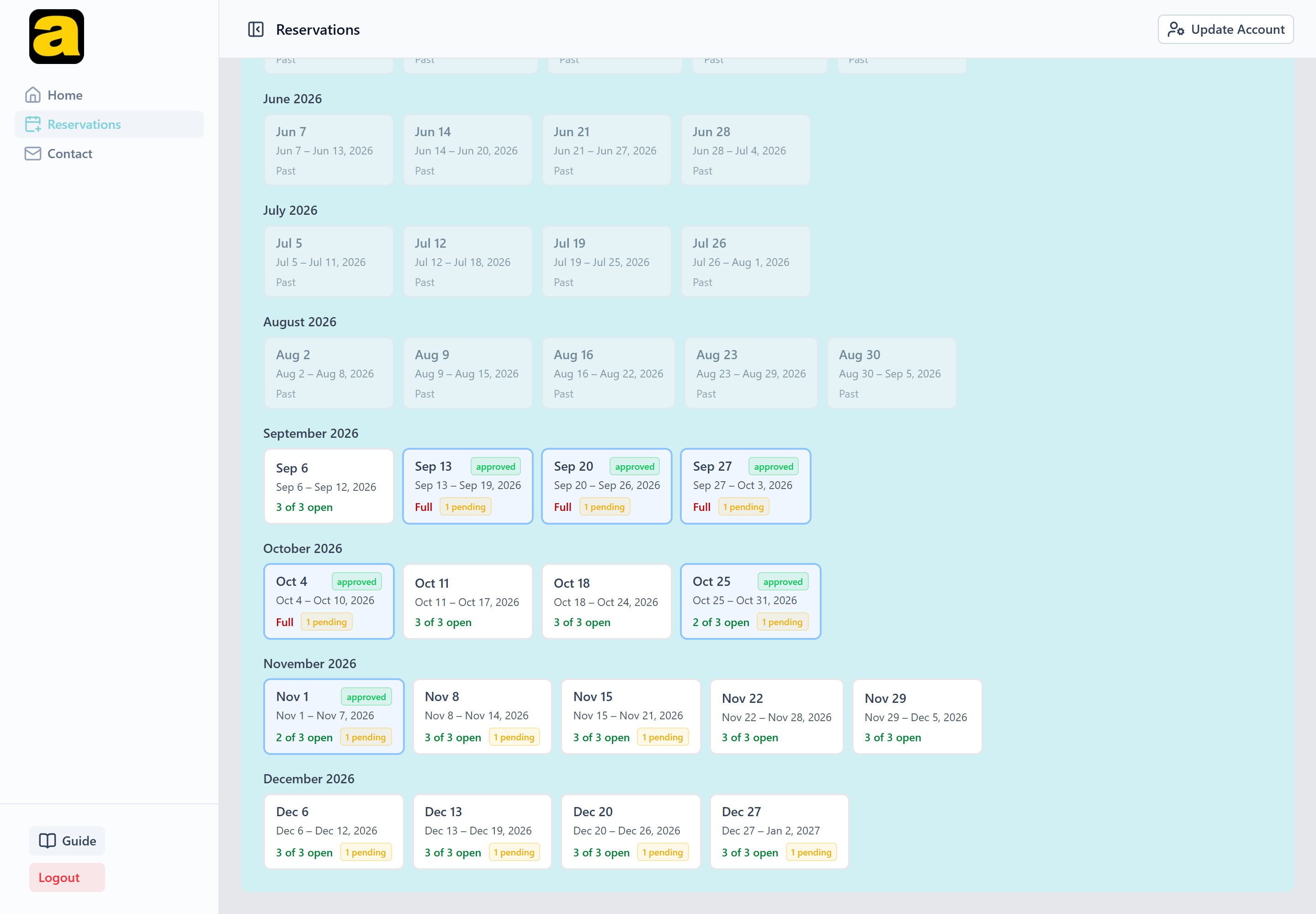
Each week in the grid shows how many slots are open, for example "2 of 3 open", and is marked Full, Past, or Yours where those apply.
How weeks are counted
A store can hold 3 approved reservations in any one week. Weeks run Sunday through Saturday, and a reservation that starts mid-week still takes up that whole week for counting purposes. There's no partial-week discount. A run that spans four weeks takes a slot in each of them.
What "pending" actually means#
This is the most useful thing to understand about the calendar, because it cuts both ways.
Pending requests don't hold a slot
A store's capacity is only used up when it approves a reservation. Until then the week still counts as open, and several vendors can have requests in for it at the same time.
So a week showing open slots may already have requests queued against it. That's what the amber "3 pending" badge counts, and any of them could be approved before yours.
Your request becomes a booking only when the store approves it.
The confirmation box repeats this warning when you pick a contested period, so you don't commit to artwork on the strength of an open slot that's already spoken for.
Why a booking gets turned down#
There are five separate reasons a booking can be refused, and they mean quite different things.
1. The week is full
The store already has 3 approved reservations covering one of the weeks your run touches. You'll be told which weeks. Choose a different starting week, or a shorter run that avoids them.
2. Cooldown: you were there too recently
You have to leave clear weeks at a store between your own promotions there: 1 week after an Exclusive, 2 weeks after a Primary. The wait belongs to whichever promotion comes first, so if you book a period before an existing one, it's the new reservation's own cooldown that applies.
Cooldown is per store. Running back-to-back promotions at different locations is fine. Only the same store has to rest.
3. You already hold that holiday season
One holiday booking per vendor, per season, per store. This is counted by season, not by dates. Christmas and New Year's overlap on the calendar but they're separate seasons, so holding one doesn't affect the other.
4. It overlaps something you already hold
You can't run two standard promotions over the same dates at the same store. A holiday promotion doesn't collide with a standard one, because they're separate inventory.
5. The period has already ended
Past weeks are greyed out and marked Past.
Your own pending requests count too
Overlap and cooldown are measured against every reservation you hold at that store, including ones still awaiting approval. So a pending request of your own can be what blocks a second booking nearby.
If the blocking reservation is still awaiting approval, cancelling it clears the block and the period can be booked again. If it has already been approved, ask your account manager. See Tracking and cancelling.
Tracking and cancelling#
My Reservations lists everything you hold, with a "2 awaiting approval" marker at the top so you can see at a glance what's still undecided.
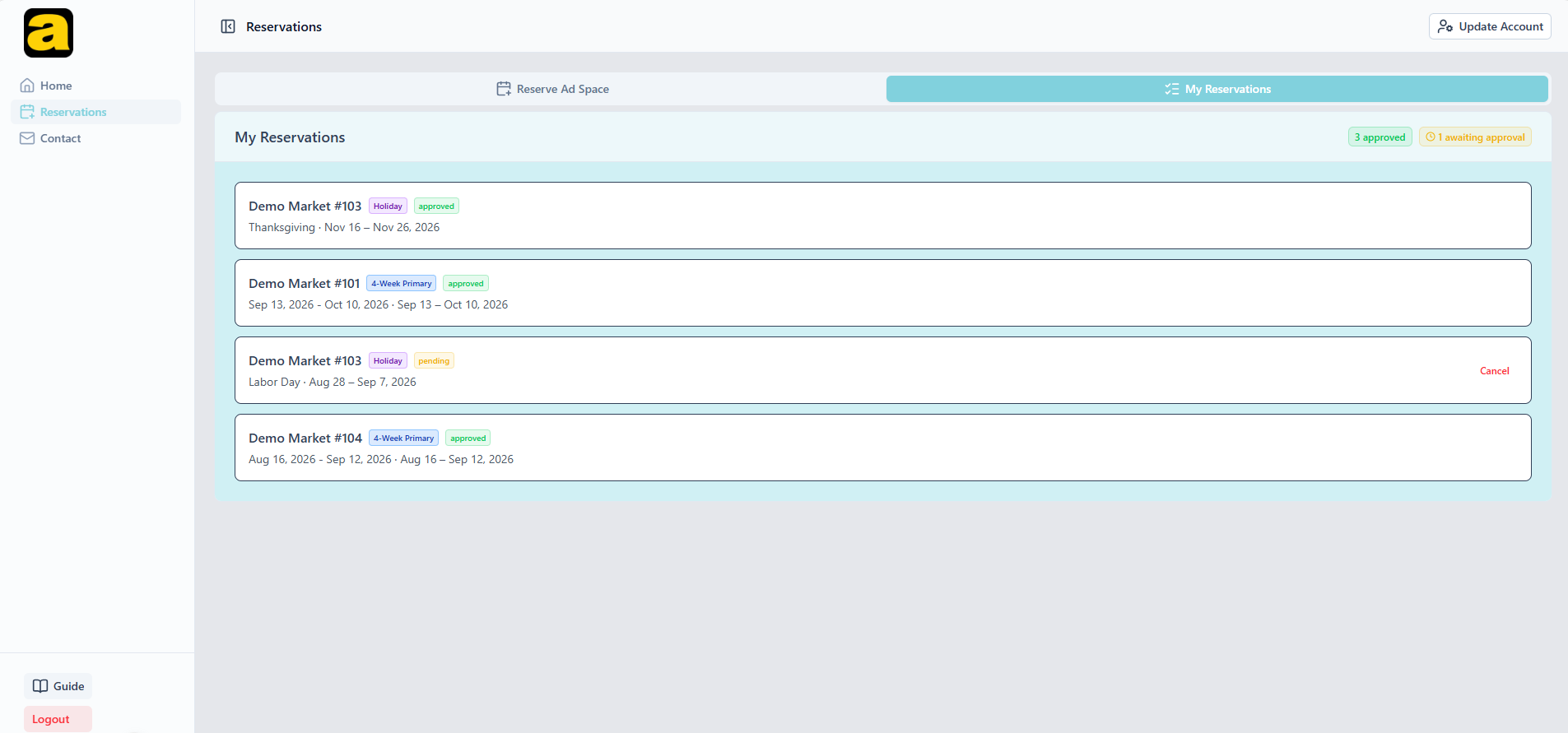
- Pending: sent, not yet decided by the store.
- Approved: booked. This is what holds the slot.
- Declined: the store turned it down.
Cancel withdraws a request that is still pending. It takes the request out of the store's queue and stops it blocking your own future bookings at that store through overlap or cooldown.
Once a store approves it, it's confirmed
An approved reservation can't be cancelled from your account. The store has committed the space and planning has started against it.
If you need to drop a confirmed promotion, contact your account manager and ask them to cancel it. Do that as early as you can, because the weeks stay held against the store's allowance until it's actually cancelled.
Leaving a store's list#
Leave on a store under Your Stores removes you from that store's vendor list. A store can also remove you from their side.
Leaving doesn't cancel what you've booked
Promotions you've already booked at that store keep running. What changes is that you can no longer book anything new there.
You can cancel requests that are still awaiting approval yourself before you go. Confirmed promotions you can't. Ask your account manager to cancel those.
Getting help#
Contact in your sidebar reaches your account manager at Adergy and keeps the conversation in one thread. Use Update Account at the top right to keep your phone number and email current. Decisions on your requests are emailed, and an account with no address on file won't hear about them.
Questions about a specific store's decision, like a decline or a request that has been pending a while, are best taken up with that store, since the approval is theirs to make.